



How to Clip and Edit VR Porn: Free Software and Settings

Cut VR porn clips without losing quality, edit 180 and 3D video in free software, and export files that VR players show correctly.

How to Clip and Edit VR Porn: Free Software and Settings - Make A Porn Site

Short answer: to clip VR porn, use the free tool LosslessCut. It copies the part you pick without encoding it again, so the 3D and the quality stay the same. To edit a whole VR scene for free, use Shotcut. It has VR filters built in. DaVinci Resolve is free too, but the free version will not export above 4K. That is too small for sharp VR, so full size needs the paid Studio version. Whatever you use, keep tags like _180_LR in each file name so players show it in 3D. Then check every file in a headset.

If you came here for one specific thing:

Checked September 2026.

Basics of VR Video: 180, 360, Fisheye and Side by Side

What kinds of VR porn files are there, and how do you tell which one you have?

Different Cameras
Pornsite shooting

Pornsite shooting

VR porn is not one format. Before you cut or edit a VR file, you need to know which kind it is, because every tool and every player treats the kinds differently. Get this wrong and the scene plays warped, doubled or flat in the headset.

180 or 360

  • VR180 covers the half of the world in front of the viewer. Almost all VR porn is shot this way. The camera sits where the viewer's head would be, and nothing behind the camera needs to look good.
  • VR360 covers everything around the viewer. It is rare in porn, because the crew, the lights and the room behind the camera all end up in the shot.

3D or Flat

Most VR porn is 3D, also called stereo. The camera has two lenses, one for each eye, and each frame holds both pictures. How they are packed matters:

  • Side by side (SBS, also LR): the left eye's picture on the left half of the frame, the right eye's on the right. This is the usual layout for VR180.
  • Top and bottom (TB, also Over Under): one eye above the other. More common for 360.

A flat, or mono, VR file has one picture only. It is easier to edit but looks far less real in a headset.

Fisheye or Equirectangular

This is the shape of each eye's picture.

  • Fisheye: two round images, straight from a dual fisheye lens such as Canon's RF 5.2mm. Some players can show fisheye as it is.
  • Equirectangular: the round image stretched into a rectangle, like a world map. This is the standard most editors and players expect. A VR180 side by side frame in this shape is twice as wide as it is tall.

Canon's EOS VR Utility, a paid subscription, converts its fisheye footage to equirectangular. Many studios convert first and then edit, because the editing tools are built around equirectangular.

Resolution

VR needs far more pixels than flat video. The frame is spread across your whole field of view and split between two eyes, so a VR file that looks sharp is usually 6K to 8K wide. That size drives almost every choice later on: which free editor can export it, how powerful your computer must be, and which codec you export in.

How to Tell What You Have

  • Look at one frame. Two pictures side by side means SBS. Two stacked means TB. Two circles means fisheye.
  • Check the shape. Width twice the height usually means VR180 SBS or 360 mono. Square usually means 360 TB.
  • Read the file name. VR files often carry tags such as _180_LR or _fisheye190. Players read those tags to decide how to show the file, so never strip them. The export article on this page lists them.
Clipping VR Porn Without Losing Quality

How do you cut a clip out of a VR porn video for free without losing quality?

Lone Editor
Adult Website Post Prodution Lone Edit

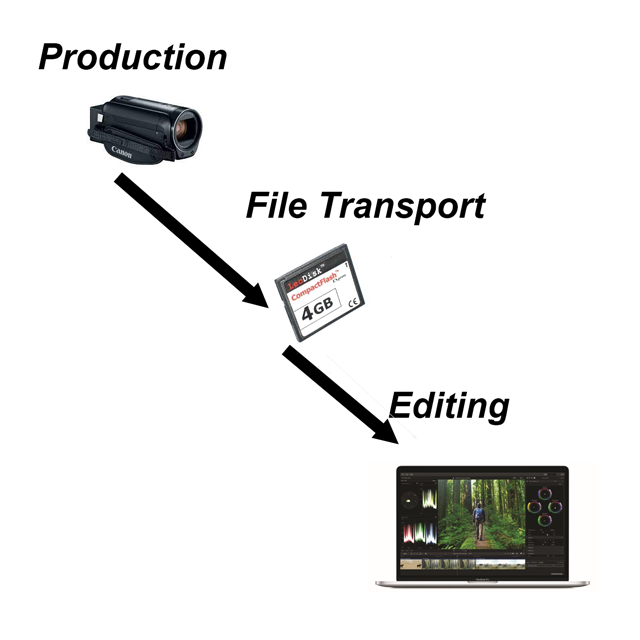
This could be you the Producer/Editor or a single person who creates start to finish.

Clipping means cutting a short piece out of a long VR scene, for a trailer, a preview or a clip store. Do not open the file in a full editor and export it again. That re-encodes every frame, takes a long time at 8K, and throws away quality. Cut it losslessly instead. It takes seconds and the clip is exactly as sharp as the source.

The Free Tool: LosslessCut

LosslessCut is free and open source, and runs on Windows, Mac and Linux. It copies the part you choose straight into a new file without re-encoding, so 3D layout, resolution and quality all stay the same.

  1. Open the VR file. It shows as the flat frame with both eyes side by side. That is normal.
  2. Play to where the clip should start and set the start point. Do the same for the end.
  3. Add more segments if you want several clips from one scene.
  4. Export. Each segment becomes its own file in seconds.

Why the Start Point Moves

Video files store a full picture only every so often. These full pictures are called keyframes, and the frames between them only store changes. A lossless cut has to start on a keyframe, so LosslessCut moves your start back to the nearest one before it. The clip may start a fraction of a second early, or a few seconds early on some files.

  • For previews and clip stores, a slightly early start does not matter. Keep the lossless cut.
  • If you need an exact frame, LosslessCut's smart cut re-encodes only the few frames around the cut point and copies the rest.

The Same Cut From the Command Line

If you already use FFmpeg, one line does the same job. This cuts 60 seconds starting 10 minutes in:

ffmpeg -ss 00:10:00 -i scene_180_LR.mp4 -t 60 -c copy clip_180_LR.mp4

The -c copy part is what makes it lossless. It copies the video instead of encoding it again, and it snaps to keyframes the same way.

Keep the File Name Tags

VR players decide how to show a file from tags in its name, such as _180 and _LR. A lossless cut does not carry the name over by itself. Name every clip with the same tags as the source, or the player will show it as a flat, split screen video.

Clipping Checklist

  • Cut losslessly, never by re-exporting from an editor.
  • Accept a slightly early start, or use smart cut for exact frames.
  • Copy the VR tags into every clip's file name.
  • Open each clip in a headset before you upload it.

Editing VR Porn in Free and Paid Software

Which software can edit VR porn, and what are the limits of the free options?

Adult Content Editing davinci

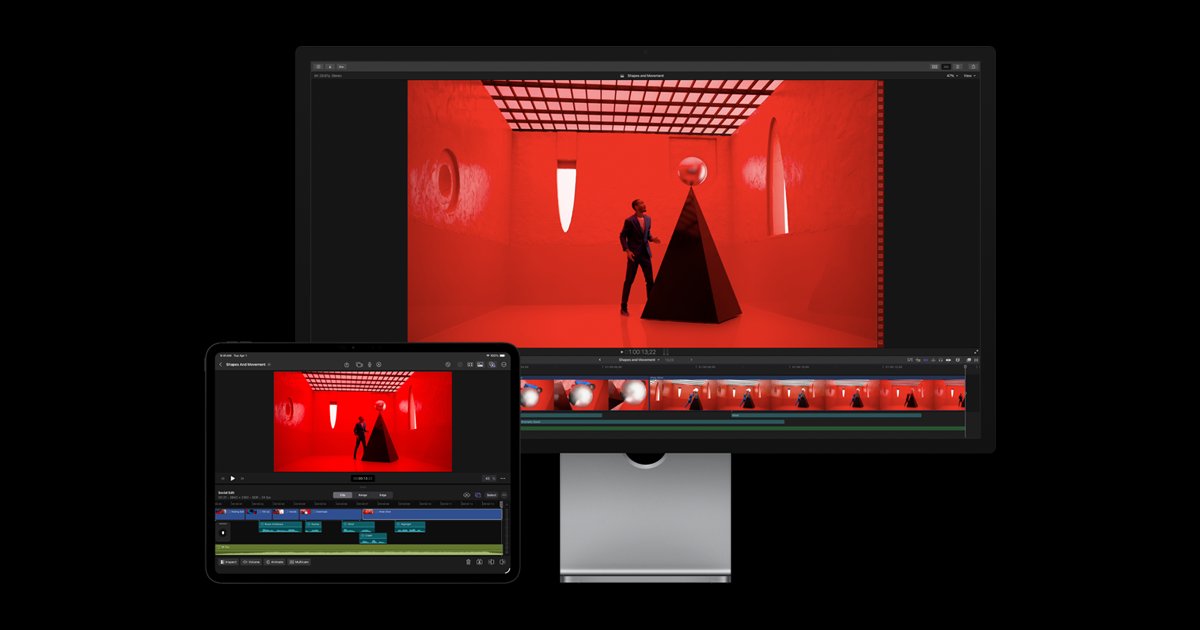
Cutting a whole VR scene works like editing any scene. You trim, join takes, fix color and mix sound. What changes is the size of the files, and the fact that anything you add on top of the picture has to work in 3D. Here are the editors that handle VR, free ones first.

Shotcut: Free

Shotcut is a free editor with a set of built-in 360 filters. They convert fisheye to equirectangular, turn a flat graphic into the VR shape, and move or level the view. It works with VR180 in the standard shape, twice as wide as tall. DeoVR, a VR video player, publishes a free series of Shotcut tutorials for VR, which is the easiest place to start.

  • Good for: trimming, joining, fades, simple color fixes and adding titles on a zero budget.
  • Weak at: smooth playback of 8K files. Use proxies, covered below.

DaVinci Resolve: Free, With One Big Limit

DaVinci Resolve is free and has the best color tools of any editor. The catch for VR: the free version edits large files but exports no larger than 3840 by 2160, at up to 60 frames a second. That is too small for a sharp VR180 3D file, which is usually 6K to 8K wide. To export at full VR size you need DaVinci Resolve Studio, a one-time purchase of $295.

  • Good for: color grading VR footage, and full editing if you buy Studio.
  • Free version trick: grade and edit in the free version, then export at full size only after you upgrade, since the project carries over.

Adobe Premiere Pro: Paid, Built for VR

Premiere Pro has immersive video tools for both VR180 and 360. It can show your timeline in a headset while you edit, its effects and transitions detect VR clips, and it can mix different VR layouts in one sequence. Canon sells a paid plug-in that converts its dual fisheye footage inside Premiere. It is a monthly subscription, so it suits people who edit VR every week.

Make Editing Smooth: Use Proxies

8K VR is hard to play back even on a strong computer. Every editor above can make proxies: small, light copies of your footage that you edit with. When you export, the editor swaps the full files back in. Build proxies before you start cutting, and editing becomes smooth. More on the machine itself in our editing hardware guide.

Titles and Graphics Must Work in 3D

This is the most common VR editing mistake. A flat title dropped onto a side by side frame shows up in only one eye, or stretched, and looks broken in the headset. To add text or a logo:

  • Put it in both halves of the frame, one copy for each eye, lined up.
  • Convert it to the VR shape first. In Shotcut, the 360 rectilinear to equirectangular filter does this.
  • Keep it near the center and not too close to the viewer, or it strains the eyes.
  • Check it in a headset. A screen will not show you the problem.

Cuts That Feel Right in a Headset

  • Cut less often than in flat video. Each cut drops the viewer into a new place, which is jarring when you are inside the scene.
  • Use fades between positions rather than hard cuts.
  • Never zoom, spin or move the view in the edit. Motion the viewer did not make causes motion sickness.
  • Keep the horizon level. A tilted horizon feels like the room is falling.

For flat editing basics, see our porn video editing guide. For the full list of editors, see porn editing software.

Exporting VR Porn So Players Show It in 3D

What export settings and file names make a VR porn video play correctly?

Porn Work Flow
Adult Website Editor Workflow

Adult Website Editor Workflow

A VR export is only right if the player shows it right. The picture can be perfect and still play as a flat, split screen video if the file name or format is off. This article covers the settings and the naming that make a VR file play correctly.

Match the Source

  • Resolution: export at the size you shot. Do not shrink an 8K VR180 file to 4K to save space. It looks soft in a headset, where every pixel is spread across your view.
  • Frame rate: keep the frame rate you shot at. VR is often shot at 60 frames a second because smooth motion feels more real in a headset.
  • Layout: keep side by side as side by side, and top and bottom as top and bottom. Never mix layouts in one file.

Codec: Use H.265 for Large Files

H.265, also called HEVC, makes files about half the size of H.264 at the same quality, and it is the usual choice at 6K and 8K. Many devices cannot play an 8K file in H.264 at all. Export in H.265, then test on the headset your buyers use.

Name the File So Players Know What It Is

VR players read tags in the file name to decide how to show it. The tags below are the ones DeoVR documents, and most VR players follow the same habit. They are not case sensitive and can appear in any order.

  • _180 for 180 degree equirectangular, _360 for 360.
  • _LR, _SBS or _3DH for side by side.
  • _TB, _3DV or _OverUnder for top and bottom.
  • _fisheye for 180 degree fisheye, and _fisheye190 for Canon's 190 degree VR lens.
  • _mkx200 and _vrca220 for 200 and 220 degree fisheye lenses.

So a standard VR180 3D scene is named something like scene_name_180_LR.mp4. Keep the same tags on every clip and trailer you cut from it.

Export Two Versions

  • A master: full size, high quality, kept on your own drive as the file every future edit starts from.
  • A delivery file: the size and codec each site or player asks for. Check each platform's upload rules first. Our deliverables guide covers masters and delivery files in general.

Always Test in a Headset

A computer screen cannot show you whether VR is right. Before you upload, put the file on a headset and check:

  • The scene fills the view in front of you and does not repeat or split.
  • Both eyes line up. If the image looks doubled or hurts to look at, the layout is wrong.
  • The horizon is level and the camera height feels natural.
  • Titles and logos sit in 3D, not in one eye.

Five minutes in a headset saves you a refund, a bad review and a re-upload.

9.5
Visit
9.0
Visit
8.5
Visit
VP
8.5
Visit
8.0
Visit

Checklist

  • Clip losslessly with LosslessCut or FFmpeg -c copy, never by re-exporting from an editor.
  • Edit on proxies and swap the full 8K files back in at export.
  • Export at full size in H.265 and keep tags like _180_LR in every file name.
  • Know the format first. 180 or 360, side by side or top and bottom, fisheye or equirectangular.
  • Put titles in both eyes, converted to the VR shape, and check them in a headset.
  • Test every file in a headset before you upload it.